Get started
Install the Windows app, create your vault, then add the browser extension. It takes about five minutes, and you never need an account.
1 Install the Windows app
LocalGateKeys runs on Windows 10 and Windows 11, 64-bit. Pick one way to install it:
- Microsoft Store (recommended). The Store installs it and keeps it up to date. Open LocalGateKeys in the Microsoft Store, choose Get, then Open.
- Installer. Download it from the download page, check its SHA-256 as shown there, and run it. Windows SmartScreen may warn you because the installer is not code-signed yet: if the fingerprint matches, choose More info, then Run anyway.
Use only one of the two on a PC.
2 Create your vault
- Open LocalGateKeys. On first start it asks you to create a vault.
- Choose a master password of at least 12 characters. Write it down and keep it somewhere safe. We never have it, so nobody can reset it for you.
- Open Security center in the sidebar and set up a recovery phrase. Keep it offline, for example on paper. It opens the vault if you forget the master password.
- In the same place, turn on Windows Hello if your PC has a fingerprint reader, a Hello camera or a PIN, so day-to-day unlocking is quick.
- Turn on scheduled backups in Settings and choose where the encrypted backup files go, such as a USB drive or a folder you already back up.

3 Add the browser extension
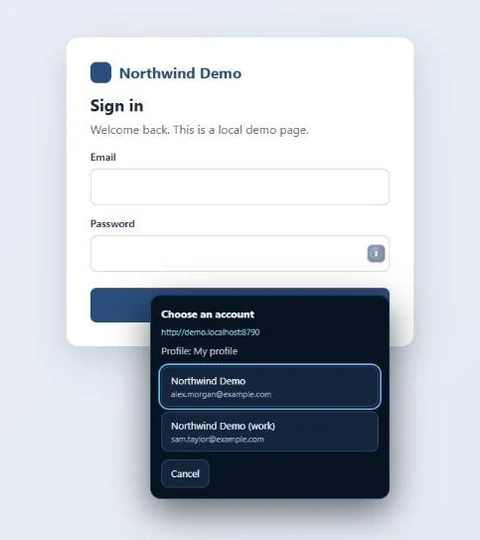
The extension fills sign-ins in your browser. It talks only to the LocalGateKeys app on the same PC, so install the app first.
- Add the extension:
- Microsoft Edge: open it in Edge Add-ons and choose Get.
- Google Chrome: coming soon to the Chrome Web Store.
- Pin it: open the browser's extensions menu (the puzzle-piece icon) and pin LocalGateKeys to the toolbar.
- Keep the app running and unlocked. Go to a sign-in page you have a login saved for: the extension offers only the logins saved for that exact site. Nothing fills until you click.
- Sign in somewhere new and the extension offers to save the login.
Extension says it cannot reach the app? In the app, open Devices & connections and choose Repair bridge, then restart the browser.
4 Bring your passwords
Choose Import & export in the sidebar and pick an export file from 1Password, Bitwarden, LastPass, Dashlane, Proton Pass, KeePass or KeePassXC, Chrome, Edge, Brave, Firefox or Safari, or any CSV. You review every item before anything is saved, and nothing goes online. Delete the export file afterwards, because most exports hold passwords in plain text.
The free edition holds up to 4 items. Pro removes the limit.
5 Fill Windows apps
For programs such as game launchers, open a desktop login in the app and choose App binding… to bind it to the program's sign-in window once. After that, a fill button appears beside the password field, or you can use the hotkey. LocalGateKeys refuses to fill if the program or window has changed since you bound it.
6 Turn on Pro
Pro is a single payment that adds unlimited items, sync between your devices, two-factor codes and documents. After you buy it, paste your licence key in Tools > Licence in the app. See your Pro licence.
iPhone and Android
iPhone: the iPhone app is in public beta. Install Apple's TestFlight app from the App Store, then open the LocalGateKeys beta link on your iPhone and choose Accept, then Install. It syncs with your Windows PC.
Android: an Android app is planned. It is not available yet.
Setup steps for Android will appear on this page when the app is released. Until then, your vault stays on your PC, and you can sync between Windows PCs with Pro.
Stuck? See Support and FAQ or email support@localgatekeys.app.